6 Reasons Why Linux Mint Is the Perfect Distro for Windows Users
There are many versions of Linux that are good for newcomers, but Linux Mint is particularly geared toward people who are already familiar with Microsoft Windows.
Linux is a fundamentally different operating system, but Linux Mint reduces how many new things you will need to learn by keeping as much of the experience as similar as possible. Let’s look at some of the ways Linux Mint makes it easier for Windows users to switch to Linux.

1. Linux Mint Has a Very Familiar Layout
After you install Linux Mint, you land on a familiar-looking desktop interface. There’s an app launcher in the bottom left, a system tray in the bottom right, and your open apps listed in between. These apps appear as icons aligned to the left, akin to Windows from versions 7 to 10.
Open windows show an app’s name across the top and have three bottoms in the top right: minimize, maximize, and close. On Linux Mint, these are located in both the place and the order that Windows users would think to look.
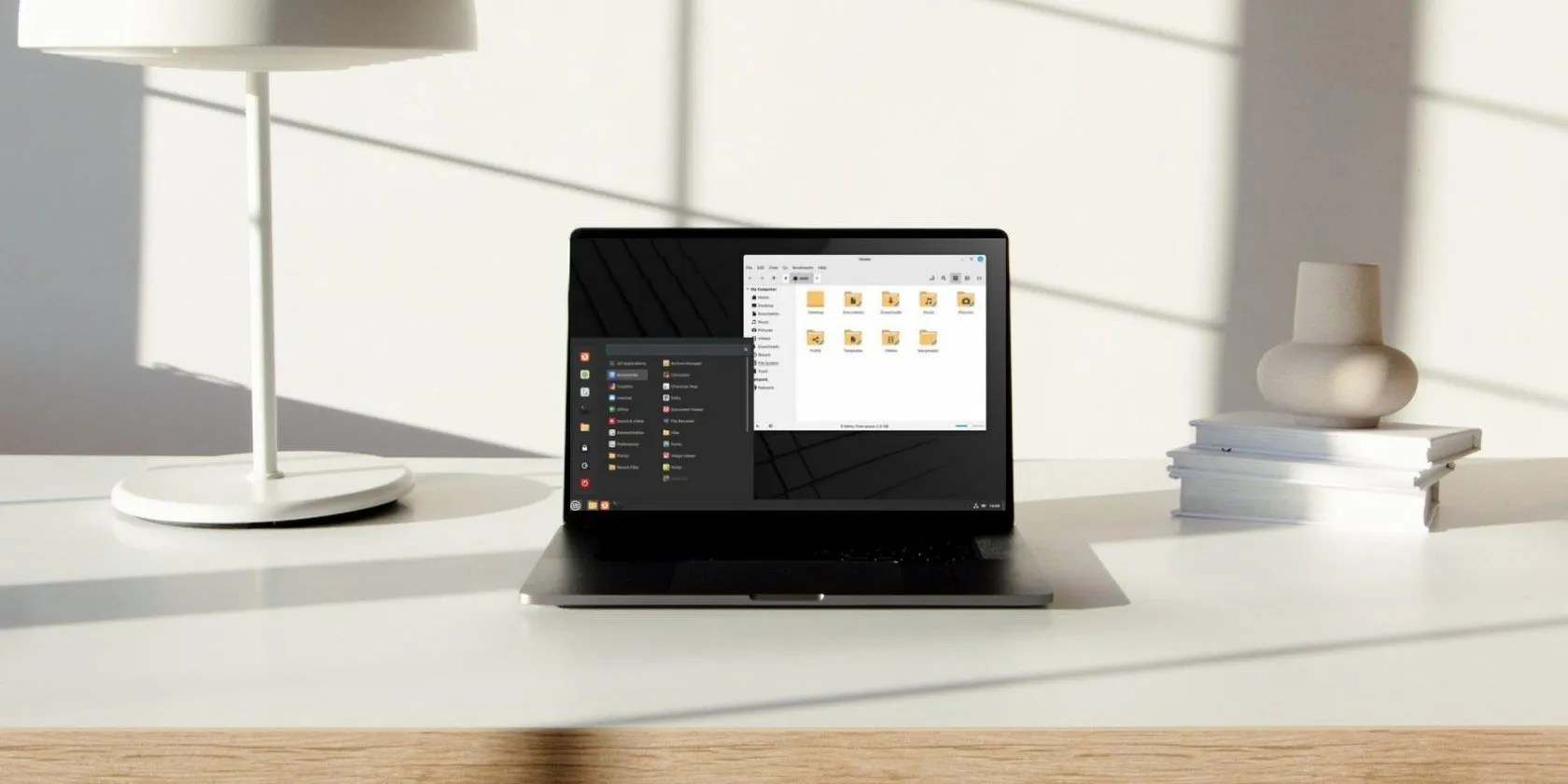
There’s even a corner bar in the bottom right to instantly hide windows and show the desktop.
Many versions of Linux come with a Windows-like interface, so Linux Mint is in good company here. But Linux Mint goes a step further than most.

2. Linux Mint Has a Very Familiar Theme
For years, Linux Mint was known for its vibrant green theme. This colored the website and continued onto the desktop, where you would find green wallpapers and green desktop icons. You couldeasily change Linux Mint’s theme, but the default one was very minty.
With the release of Linux Mint 21.1, those colors changed. When you open the file manager, you now see beige folders. If you select one, you see a blue rather than green highlight. Through the broader interface, blue is now the default accent color. The panel across the bottom, which Windows refers to as a taskbar, is black, like in Windows 10.

Microsoft isn’t the only one to use these colors, but they are defaults many Windows users are already accustomed to.
3. Use an App, Not the Command Line
Some Linux distros expect you to use the terminal. To be fair, only a minority expect you to use the terminal for necessary tasks, like installing or removing software. Most let you do all essential functions with a graphical app.
But some distros expect you to fall back to the terminal if you want to perform non-standard tasks. It’s not uncommon for GNOME users to run a terminal command if they’re trying to change their theme or install fonts or otherwise tweak their machine.

elementary OS goes further and doesn’t even come with a system monitor app capable of closing software that freezes up. Despite being a beginner-oriented distro, you need to use a terminal for such things.
Linux Mint comes with graphical ways of doing most tasks. While many Linux users gradually grow comfortable with the command line, it’s easy to be a Linux Mint user who doesn’t, just like many Windows users never open the command prompt. It’s easy enough to configure and manage the system using graphical means.
4. Linux Mint Is Very Conservative
When Apple makes changes to macOS, app developers either have to get on board or get left behind. It’s not uncommon for older software to stop working on newer Mac devices.
Windows, by contrast, is hesitant to break things. Yes, Windows gets a new coat of paint every few years, but it doesn’t take many clicks to wind up on part of the desktop that looks exactly like it did over 10 years ago. And there’s a decent chance you could still run software that is equally old.
In the Linux world, some desktop environments consistently roll out new features or make changes. GNOME is like this. GNOME 40 moved around major aspects of the user interface. GNOME 43 changed the menu that you see when you click on the system indicators. Newer GNOME apps have a theme and rounded corners that older apps lack.
Linux Mint is more conservative. The desktop has changed in the past decade, but not much. The same can be said for the theme. Apps on Linux Mint follow a traditional design paradigm. If you don’t want your experience to change all that much, Linux Mint may be your warm comfy blanket.
5. Linux Mint Is Free of Bloatware
Most operating systems tend to come with preinstalled apps to help you hit the ground running when you start using a new computer. But there is a thin line between software needed to make good use of your computer, and software that’s trying to make money off you.
This software often starts at boot and runs in the background, slowing down your computer. Annoying software that’s preinstalled for someone else’s benefit is known as bloatware. Such software is common on Windows, but it’s absent on Linux Mint.
That means you don’t have to start your Linux Mint journey off by removing apps. Linux Mint comes with a lot of software, but it’s all free and open-source. None of it will secretly run in the background, show you ads, display pop-ups, or otherwise seek your attention. So if you’re sick of bloatware, this is one perk of switching to Linux Mint.
6. A Focus on Beginners
Linux Mint doesn’t assume you’re already familiar with Linux. Nor does it assume you’re willing to put much effort into learning something new. The developers simply want your computer to work with as little friction between you and the experience as possible.
That’s whyLinux Mint is easy to installand comes with plenty of programs available out of the box, saving you the effort of having to look for them yourself. Linux Mint can automatically download media codecs that don’t come preinstalled so that you can watch video files you’ve recorded from a camera or downloaded for offline viewing.
The software for downloading apps and updates is reliable because Mint developers don’t assume you know how to use the command line if something goes wrong.
Are Other Versions of Linux Good for Windows Users?
Many people switching from Windows to Linux want a completely new experience. For such people, any version of Linux is just fine.
But even if you want a Windows-like experience, you aren’t limited to Mint. After all, if you buy a Steam Deck and switch to Desktop Mode, you will activate a version of Linux that looks like Windows.
The Steam Deck has a desktop mode that runs KDE Plasma. It feels fantastic for sure but can you get the same experience on your computer?
Quality apps that don’t cost anything.
I plugged random USB devices into my phone and was pleasantly surprised by how many actually worked.
The fix was buried in one tiny toggle.
Tor spoiled me forever.
The key is not to spook your friends with over-the-top shenanigans.
