7 Apple Watch Tips for Beginners
If you just started out using an Apple Watch, everything might be a bit confusing at first. Sure, the interface is fairly easy to use, but you might still need a guide to help you master your new smartwatch.
Here are some beginner-friendly tips that’ll help you make the most out of your Apple Watch in no time.

1. Access Your Apple Watch Apps
Just like your iPhone, your Apple Watch has several apps installed. And you can access them just as easily as going to the app Library on your iPhone.
All you need to do is press the Digital Crown (the round button on the right side) on your Apple Watch. This will immediately open the Apple Watch Home Screen with all the installed apps you could use. Open any app by tapping on it.

2. Organize Your Home Screen However You Want
Now that you know how to access your Apple Watch apps, you might want to rearrange them to whatever you want. Fortunately, there are a couple of ways to do it.
First, you can do it on your Apple Watch. Just go to your Home Screen by pressing the Digital Crown, andpress and holdany app. In the menu that pops up, tapEdit Apps. You’ll see all your apps start to jiggle. Press and hold the app and then drag it to the place you want to move it to. You can do this will all your apps.

If you think using your Apple Watch to organize your Home Screen can be a lot of work, you’re not the only one. Fortunately, you can also do it using your iPhone like this:
It’s worth noting that you can only organize your apps when using the Apple WatchGrid View. If you useList View, your apps will always be in alphabetical order.

3. Go Back to Your Watch Face Instantly
you could quickly go back to your watch face if you open an app or the Apple Watch Home Screen.
All you need to do is press the Digital Crown (the round button on the right side) on your Apple Watch. If you open an app from your Home Screen, as we showed you before, you’ll go back to your Home Screen instead of your watch face. To go to your watch face, you’ll need to press the Digital Crown one more time.
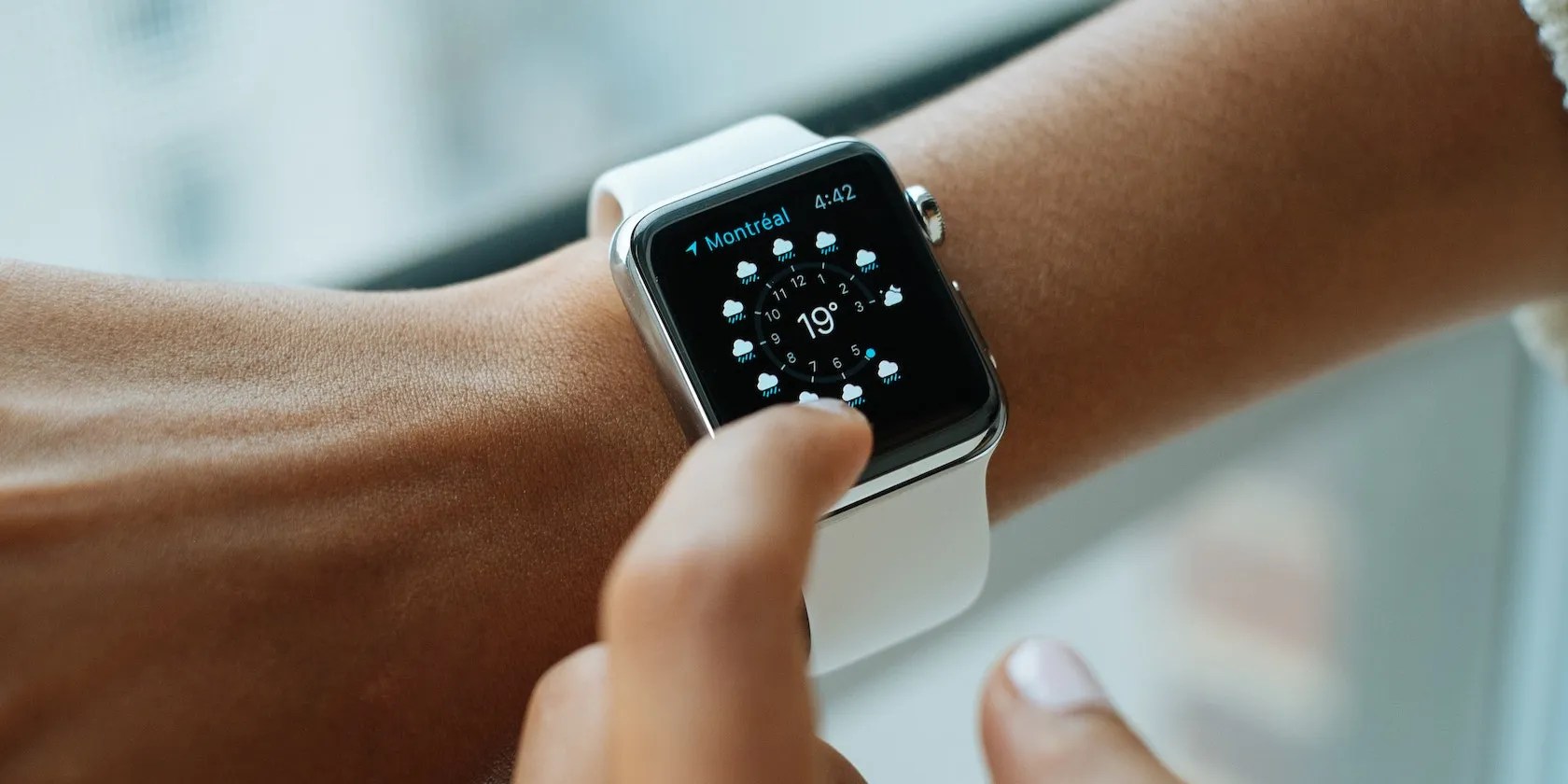
4. Open Control Center on Your Apple Watch
Just like your iPhone, iPad, or Mac, the Apple Watch also has a Control Center. Granted, it’s not as customizable as the Control Center on your iPhone, but you can stillcustomize and use Control Center on your Apple Watchpretty easily.
There are a lot of useful features in the Control Center, including the ability to ping your iPhone with your Apple Watch, so it’s worth knowing how to access it.
To open Control Center on your Apple Watch, first make sure you’re looking at your watch face (if you aren’t, you can quickly go back by pressing the Digital Crown). Then, all you need to do isswipe upfrom the bottom of your screen.
This will open the Control Center, where you can see all the available tools, like a button toping your iPhone with your Apple Watch. To exit Control Center, press the Digital Crown, or swipe down from the top of your Apple Watch screen.
5. Open Your Notifications on Apple Watch
One of the best ways your Apple Watch helps you in your everyday life is that you can quickly access your notifications without even touching your iPhone. That’ll help you quickly access any notification you get in an instant.
To open your Apple Watch Notification Center, first, make sure you’re looking at your watch face. If you’re not, just press the Digital Crown to go back. Then, swipe down from the top of your screen. You’ll see a list of all your iPhone notifications, with the most recent ones at the bottom and the oldest at the top.
If you want to delete a notification, you can swipe the notification to the left and tap theX buttonthat’ll appear on the right side. But if you have a lot of notifications, you can go to the top of the list—either by swiping down or by using the Digital Crown—and tap onClear All.
6. Open the Apple Watch Dock in a Flash
Just like a Mac, your Apple Watch also comes with a Dock. Even though it isn’t as great as the one on the Mac, you can still use it to access your most recent or favorite apps instantly.
Tostart using your Apple Watch Dock, simply press the side button on the right side of your Apple Watch (right below the Digital Crown). You’ll see a list of your most recent apps; you can scroll up or down to see all of them. To close any of these apps, you can swipe the app to the left and tap theX button.
As we mentioned before, you can customize your Dock so it shows a list of your favorite apps. To do this:
7. Quickly Access Your Medical ID
One of theApple Watch’s greatest hidden featuresis that you or anyone can access your Medical ID at any time. That way, in case of an emergency, people can look at your Medical ID and see important health information about you (like your allergies, age, blood type, and emergency contacts).
To view your Medical ID on Apple Watch, simply press and hold the side button (below the Digital Crown) until you feel a haptic response. Drag theMedical IDslider to the right to open your Medical ID.
Master Your Apple Watch
These are only a few tips you can use to make the most out of your Apple Watch, but there are other ways to take advantage of your smartwatch in your everyday life. Whether it’s to improve your health or have better control over your notifications, your Apple Watch has many ways to help you.
The best part of owning an Apple Watch is that you can use it to simplify other areas of your life.
If an AI can roast you, it can also prep you for emergencies.
Unlock a world of entertainment possibilities with this clever TV hack.
This small feature makes a massive difference.
It’s not super flashy, but it can help to keep your computer up and running.
OneDrive is one of the best, but it has a catch.
