How to Enable RGB Lighting Controls in Windows 11
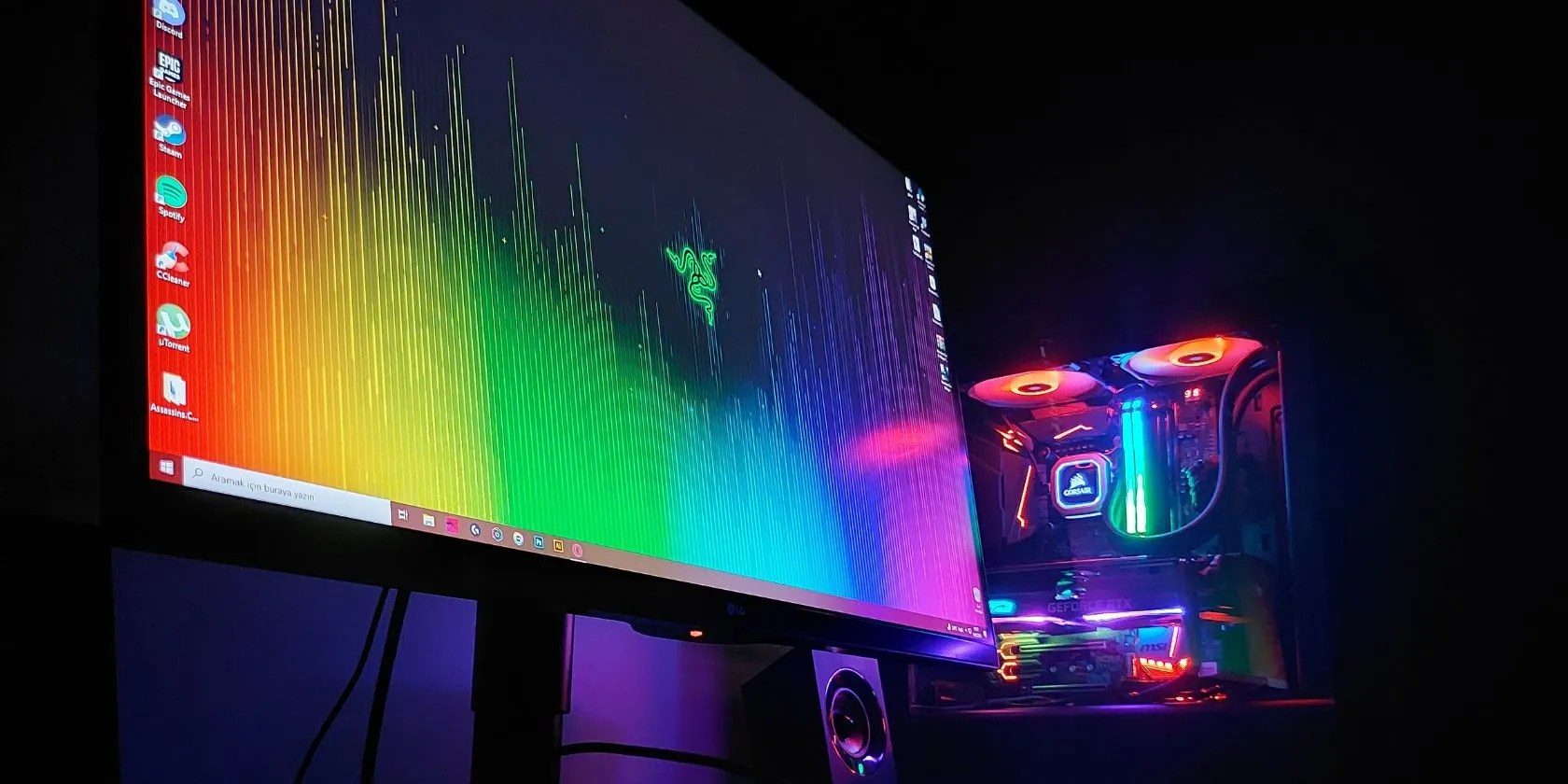
RGB-laden computer peripherals are an established medium to spruce up the design of computers. In the last five years, we have seen almost every computer accessory pack RGB lighting effects of some sort or the other. Even laptops are extensions of the RGB theme beyond the backlit keyboard and adding lighting to the chassis.
But as far as color tweaking goes, Windows users have to use custom or third-party software for their computer accessories (if the device supports it). However, Microsoft is testing an RGB Lighting control feature that could potentially eliminate the need for such software. Want to try it out? Let’s begin.

Do You Really Need RGB Lighting Controls on Windows?
If you use any external peripherals (especially gaming-related), RGB lighting has a great visual appeal. Eventhe best gaming accessories(mouse, keyboard, and controllers) now have some form of RGB lighting embedded in them. Expensive products offer slightly better customizations compared to moderately priced ones.
If you want to customize the RGB lighting effects, you need a compatible software counterpart. Renowned gaming accessories brands offer custom software which allows you to adjust lighting effects, modes, and even brightness.

If you like to shop between brands, it gets tedious to install a dedicated program for every RGB accessory you have. Not everyone uses all peripherals from a single brand which means you need to install multiple software for customizing RGB effects.
Microsoft noticed this problem and put forward a plan to unite all RBG accessories on Windows 11. The Windows Insider build 25295 has a hidden experimental feature that adds a Lighting option in the Personalization section of the Settings app.

This setting will act as a central hub to manage and tweak all the connected devices with RGB lighting. So, you will need fewer or no third-party apps for adjusting RGB effects on any connected device in Windows 11.
The RGB lighting feature is in the testing phase and is only available in Windows Insider build 25295 and above. So, you need to first update to the latest Canary channel build and then use ViveTool to enable the feature on your system.

1. Change to the Insider Build
You can download the Insider build 25295 by enrolling in the Windows Insider program and then checking for new builds using the Update Windows section in the Settings app.
However, if you don’t want to enroll in the program, you can useUUP Dump to download the latest Windows Insider buildsand try it on your system or on a virtual machine. After that, install the build and boot to the desktop.
2. Enable RGB Lighting Using ViVeTool
You can enable the hidden experimental features on Windows usingViVeTool. There is a command line version and a GUI version ofViVeTool available on GitHub. Download and extract the ViVeTool to the C drive and then repeat the following steps:
Control All Your RGB Peripherals in One Place
RGB has amplified its appeal in the last five years. It has moved from bland boring colors to customizable effects. But installing separate software to tweak each device isn’t a good idea. Thankfully, Microsoft is working on centralizing RGB lighting customization, so you won’t need to install a sketchy RGB tweaking app ever again.
How come you can’t drag File Explorer tabs like you can web browser ones? Turns out, with a bit of tweaking, you can.
Unlock a world of entertainment possibilities with this clever TV hack.
Some subscriptions are worth the recurring cost, but not these ones.
Lose your laptop without this feature, and you’ll wish you had turned it on.
The best features aren’t the ones being advertised.
Revolutionize your driving experience with these game-changing CarPlay additions.
