How to Restart Print Spooler Service on Windows
The Print Spooler service is a necessary element for printing documents on any Windows operating system. It is responsible for managing print jobs sent from computers to the printer and can become dysfunctional due to errors or corrupted files.
Restarting the print spooler service using specific methods can help resolve those issues and get your printer working properly again. This guide will explain how to restart the Print Spooler service on Windows.

What Is the Print Spooler Used For?
Have you ever been in the middle of printing something important and suddenly your printer stopped working? Frustrating, right? Well, it might just be a problem with the Print Spooler. But what exactly is a Print Spooler? And what is it used for?
The Print Spooler is a Windows system service that manages the printing process. It acts as an intermediary between the user, applications, and the printer. The Print Spooler also keeps track of which documents have been printed and how many copies have been printed. It is an integral part of the Windows operating system and must be running for printing to function properly.
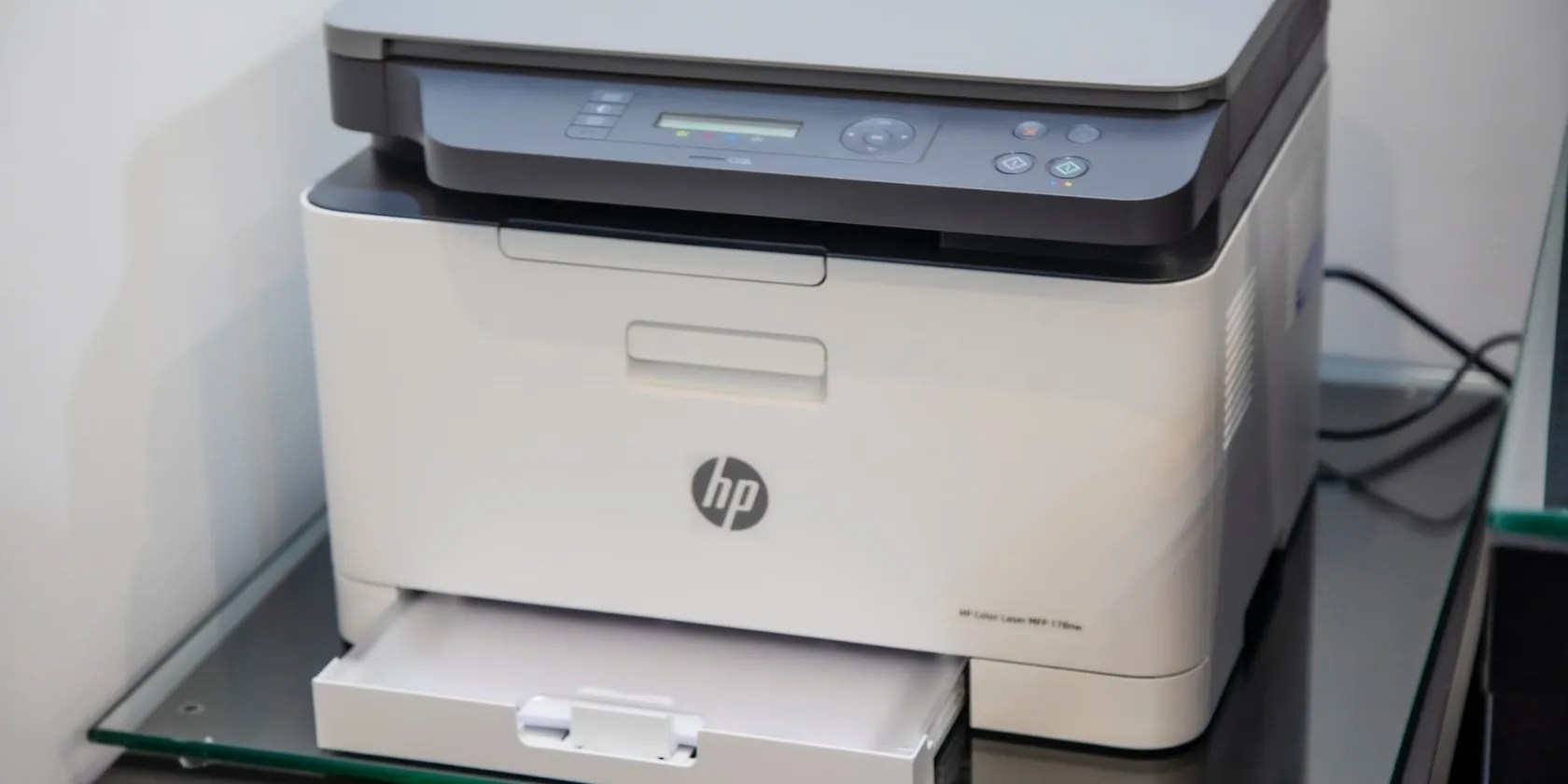
Without this tool, printers may not work as expected or at all. If you encounter any issues with your printer, it is always worth checking if the Print Spooler service is running. If it isn’t, you can try restarting the service or reinstalling your printer driver.
How to Restart the Print Spooler Service Using Windows Services
Restarting the Print Spooler service is a quick and easy way to fix common printing issues on Windows. To restart the Print Spooler service using Windows Services, follow these steps:
How to Restart the Print Spooler Service Using Command Prompt
You can also open Command Prompt as an administrator and run a command to restart the Print Spooler service. Here’s how to do it:
And that’s it! The Print Spooler service should now be restarted.

How to Restart the Print Spooler Service via Task Manager
Alternatively, you can restart the Print Spooler using Task Manager. To do this, follow these steps:
So, there you have it - three different ways to restart the Print Spooler service on your Windows 11 PC. Whether you choose to use the Services window, Command Prompt, or Task Manager, the steps are simple and straightforward. So, go ahead and give it a shot!

Restarting the Print Spooler on Windows, Made Easy
Did your printer stop working while printing something important? Don’t worry, it might just be a simple fix. Sometimes the print spooler service on Windows just needs a quick restart to get things up and running again.
Printers give people enough problems without their software issues on top of that. Here’s how to fix a print spooler error in Windows.

Not Linux, not Windows. Something better.
My foolproof plan is to use Windows 10 until 2030, with the latest security updates.
These films will leave you questioning humanity, but also wanting more.
Free AI tools are legitimately powerful; you just need to know how to stack them.
Anyone with more than a passing interest in motorsports must see these films.
