How to use Google Authenticator or Authy to keep your accounts secure
Quick Links
Internet fraudsters are always looking for accounts to hack in hopes of getting access to valuable personal information. History has proven that passwords are no longer sufficient to safeguard you. So, it’s best to secure your online profiles as much as possible with other methods.Security systems like two-factor authentication(2FA) have been developed over the years to provide an additional step to the login process. This ensures that dubious characters cannot access your account even if they manage to get a hold of your passwords.
We’ve seen one-time passwords commonly sent via SMS. But any knowledgeable party can intercept these codes due to a lack of end-to-end encryption. A more secure security method is the use of physical 2FA devices. But things can quickly become messy if you lose the hardware. Think of it like losing the keys to your house without a copy—it’s a similar result. 2FA apps are the ideal middle ground to secure your online profiles. They protect your accounts from unwanted access by using single-use codes generated every minute to verify your identity.

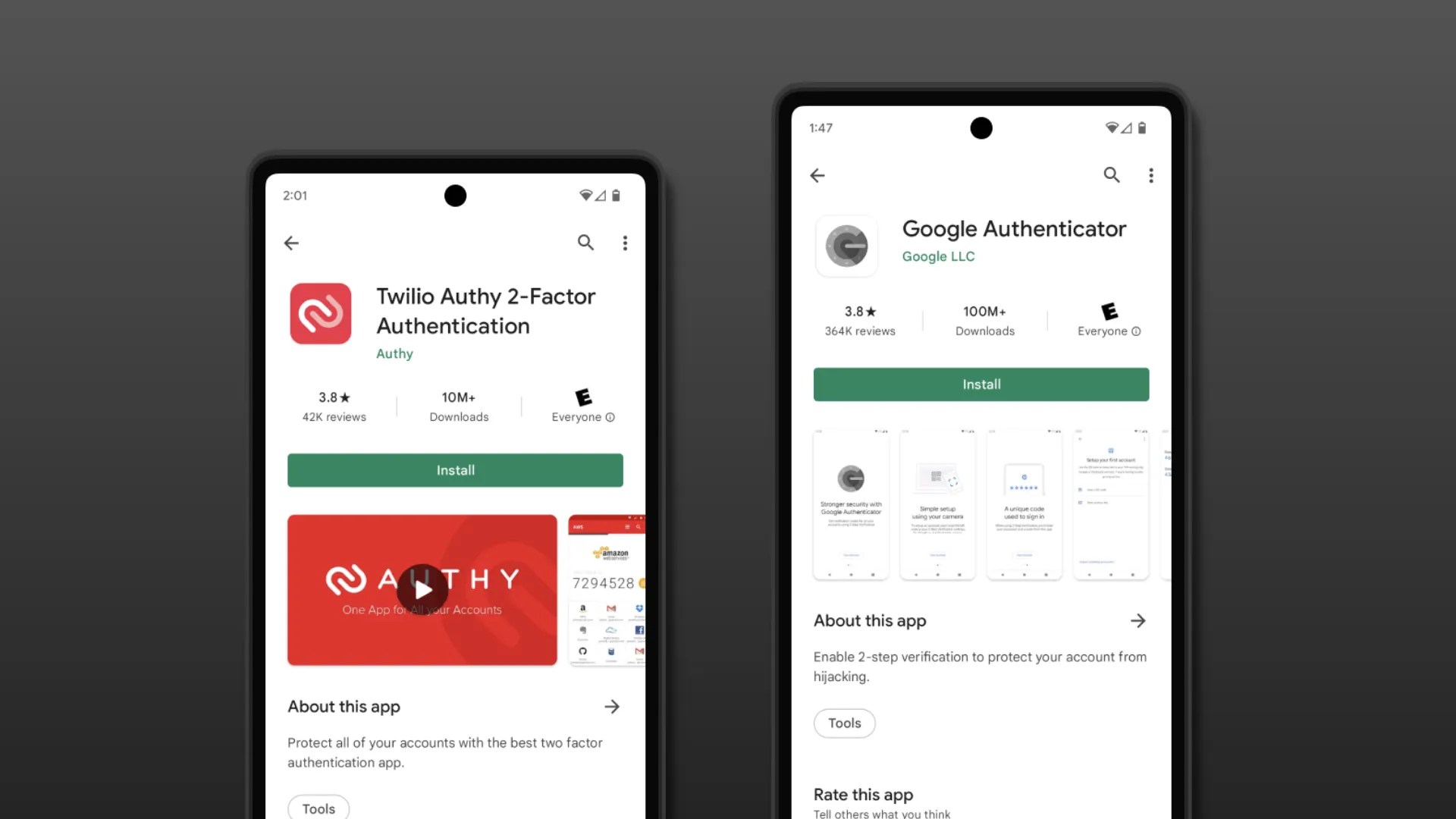
Google Authenticator and Authy are examples of free 2FA apps that protect your accounts from unwanted access. Both provide one-time verification codes, but they work differently. Google Authenticator only stores codes on one device, so if you want to set it up on another, you’ll have to transfer your codes over manually. Meanwhile, Authy links your code with your Authy account, so you can log in to it on any device and access your codes. This guide shows you how to set up both apps via yourtop-of-the-line Android deviceor iPhone.
How to enable 2FA on your accounts
Before you set up a 2FA app, you must set up 2FA on the account you wish to secure. While most popular services provide 2FA verification, not all do (for example, Disqus and Spotify). You can find a complete list of 2FA-enabled serviceson the 2FA Directory website.
You’ll find instructions for a handful of popular account types below. We recommend checking with your services' support if you’re having trouble. Services either provide an alphanumeric code or a QR code. Both work for enabling 2FA on either Google Authenticator or Authy.

Tap your profile picture and navigate toSetting & Privacy, or go directly to yourSettings & Privacy page. Then selectSecurity & Account Access>Security>Two-Factor Authentication.
Google requires you to set up SMS verification first. Once you’ve done so, you’ll receive the option to add an authenticator app.
Open the Gmail or Google app. Next, click your profile picture and tapManage your Google Account, or go directly to theMy Account page.Then, navigate toSecurity>Signing in to Google>2-Step Verification>Get Started.
Once you’ve set up SMS verification, clickSet upunderneath theAuthenticator appto get your code.

Tap the avatar icon in the bottom navigation bar. Next, go to theYour Accountpage and selectAccount Settings>Login & Security.
Then, tap theEditbutton besideTwo-Step Verification (2SV) Settingsfollowed byGet Started.

It’s easy toset up 2FA on Facebook. Navigate toSecurity and login settings, selectEdit(underneathUse two-factor authentication), and selectSetup(next toAuthentication app).
Go to yourSettingspage and selectSecurity>Two-step verification>Get started>Mobile app.
TapSettings>My Account>Enable Two-Factor Auth.
Go to yourSecurity basicspage and selectMore security options>Set up two-step verification.
Google Authenticator
For many users, Google’s Authenticator app is the default pick on Android. Some users prefer Authy—mainly due to Authenticator’s lack of updates. Still, Authenticator is trusted by millions of users worldwide. Google does update the app, just not frequently.
How to add an account to Google Authenticator
Before starting this process, you must prepare the account you’re linking. Most popular services use 2FA, which is usually located in theSecuritysection of their settings menus (for example, on Twitter Desktop, it’sSettings & Privacy>Security & Account Access>Security>Two-Factor Authentication). You’ll then set up the option using a QR code or a text code (or both). Once you have this code ready, follow these steps:
How to transfer codes to a new phone
Once you’ve set up 2FA on your phone, you’ll need to transfer your codes when changing devices. If your new phone is ready to go, follow these steps:
While the setup for Authy is similar to Google Authenticator’s, Authy backs up your codes to the cloud. When setting up Authy on additional devices, you sign in to your account, verify using 2FA, and your codes will be there.
How to add an account to Authy
Don’t take chances; safeguard your accounts now
These days, it’s essential to use 2FA to help keep your accounts safe and secure. Thankfully, with Google Authenticator or Authy, it only takes a few minutes to get up and running. While this post has only covered two apps, many more are out there. So, if you’d like to try them out, here’s our breakdown of thesix best 2FA apps for Android.
The note-taking app I should have used all along
Broader branding hints at wider paid-tier ambitions
Tidal is the best app for streaming music
It’s been a while
It helped me wind down before bed
Storage upgrades have never been so important
