Install Gitea on a Raspberry Pi to Create Your Own Code Repository
Git is a version control system used by software developers, coders, and tinkerers to collaborate on and distribute open source projects. Using Git, you may handle projects of any size, pull in code changes and merges, and allow users to clone your repositories onto their own machines. The open source ecosystem runs on Git, and many of the projects featured on MakeUseOf.com involve using resources from GitHub. With Gitea, you can host your own fully functional Git repositories on a Raspberry Pi in your own home.
Why Host Your Own Git Service on Raspberry Pi Instead of Using GitHub?
With 55 million users,GitHub is the largest repository of free and open source softwareon Earth, but its current owner, Microsoft, is not a natural fit for the role of custodian. Previous CEOs of the company described Linux and the General Public License as “a cancer”, and most of Microsoft’s own products are proprietary and closed source.
Microsoft’s ownership has also seen GitHub exploring some ethically dubious technologies—notably with GitHub Copilot, an AI tool to help programmers to generate code. Copilot was trained on data from GitHub, in possible violation of the terms of the Creative Commons licenses employed by coders.

By using GitHub, developers are creating yet another choke point at which innovation can be stifled, undermined, and subjected to frivolous interference.
Gitea Lets You Set Up Your Own Git Server on Raspberry Pi
Gitea is a fork of Gogs, and is a community-managed lightweight code hosting solution written in Go, and published under the MIT license. It aims to have a more open and faster development model than its predecessor, and will run on machines with even modest resources, such as a Raspberry Pi. You’ll be able to work on your dotfiles,custom Ubuntu ISOs, Bash scripts, and Java and Python utilities without fear that they’ll be subject to a DMCA takedown, be used to train nefarious software, or be otherwise out of your control.
How to Install Gitea on Your Raspberry Pi
Gitea comes with several installation methods, but the easiest one is via Docker. If you don’t have these already running on your Raspberry Pi,install Docker and Docker Composenow.
The files you store in your Gitea server will potentially take up a lot of space, so we suggestusing external storage with your Raspberry Pi, and using that as the location for your Gitea install.
Connect to your Pi via SSH, then navigate to the location where you want to install Gitea, and create a new directory, then move into it:
Create a new file with nano:

…and paste the following code into it:
Change the timezones to your own locale and choose a strong password for your database, then save and exit nano withCtrl + O, thenCtrl + X.

…to bring up docker-compose in detached mode. Docker-compose will pull multiple images for Gitea and Maria DB and set up containers. Depending on your connection speed, this may take some time.
When you are returned to the command prompt:

…should show “gitea” and “gitea_db_1” as “up”. You can now visit the initial configuration page for your Gitea site atyour.pi.local.ip.address:3000.
Don’t alter anything yet. If you’re planning to access your Gitea instance over the internet, you need to do a little more preparation first.
Access Your Gitea Instance Over the Internet
You want to be able to type in a standard URL to be able to reach your Gitea instance, so you’ll need Apache to handle proxying. Install Apache with:
Now, start and enable Apache with the following commands:
Enable Apache’s proxy modules with:
Choose a domain name or subdomain namefrom a reputable registrar. Then, from your registrar’s settings page, find the ‘Advanced DNS’ options and add a newArecord. Set theHostfield to “@“and the value field to your static IP address. Set the TTL (Time to Lease) value as low as possible, then save.
Open your router admin page, and find a section titled eitherPort Forwarding,Port Mapping, orPort Management.
Create a new entry for HTTP requests. Set both the local and public port to80, and the local IP address to the IP address of your Raspberry Pi.
A second open port is required for HTTPS requests. Set both the local and public port to443, and again, the local IP address to the IP address of your Pi.
Finally, you need a port open for SSH requests to your Git server. Set both the local and public port to222, and the local IP address to the IP address of your Pi.
You will be using Certbot to obtain security certificates and keys. Add the Certbot repository, update, then install Certbot:
Change directories, and create a new file with nano:
In the new file, paste the following, making sure to copy in your own domain name:
Save and exit nano withCtrl+O, thenCtrl+X, and enable your new conf file with:
Restart Apache:
Run Certbot with:
…and select your domain name from a list. Certbot will fetch and install certificates and keys. When you are returned to the prompt, restart Apache again:
Gitea Instance Setup
you may now visit your Gitea instance in a browser with at the addresshttps://your-domain-name.tld. You’ll be able to set the database type, password, and other variables in the first section. These will be values you specified in your docker-compose file, and should already be filled in, so there’s no need to change them.
Ingeneral settings, set thesite titleto a suitable one,Server Domainshould be your domain name andSSH Server Portmust be set to222. The base URL should be your domain name including “HTTPS://”.
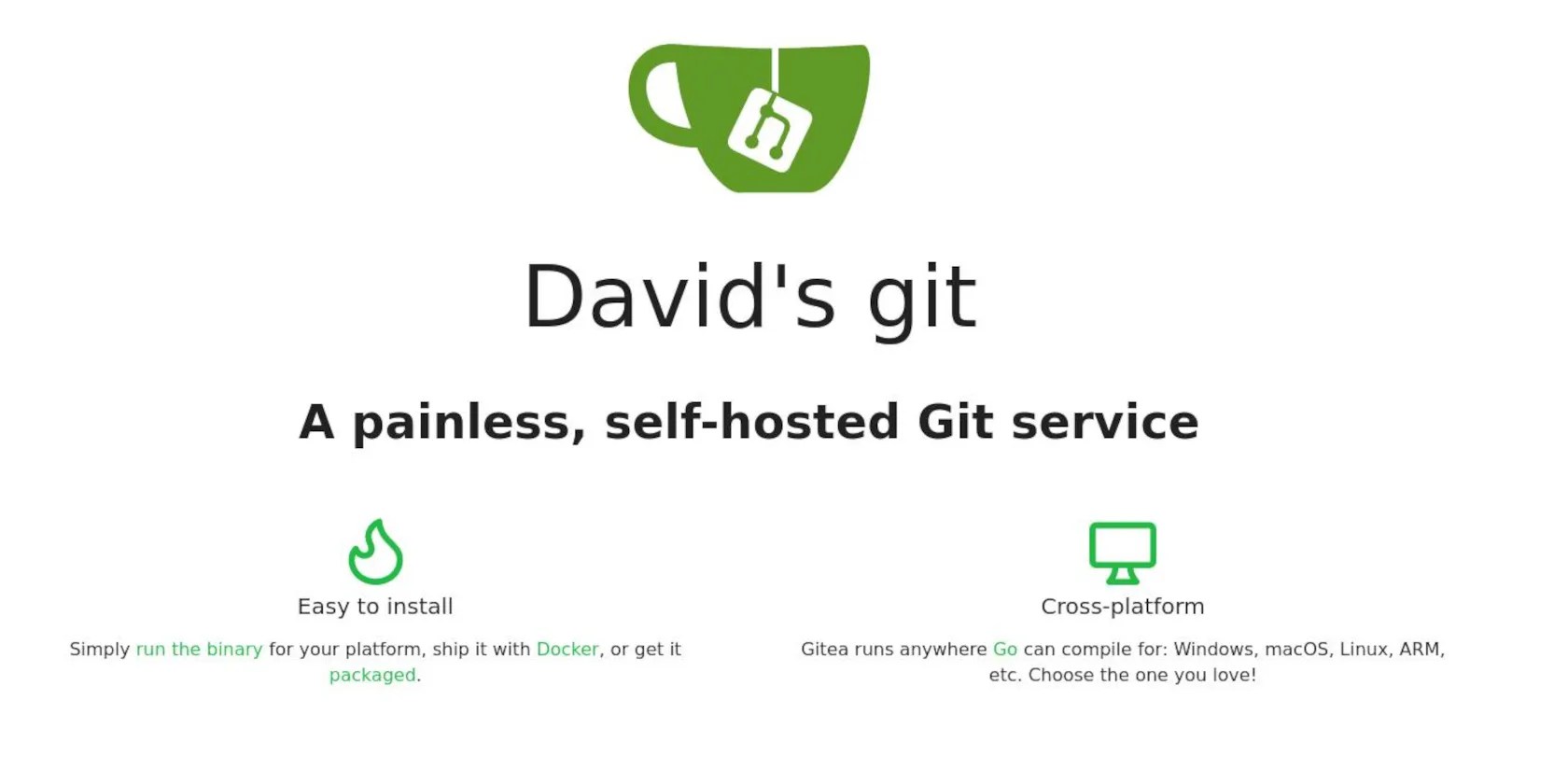
When you’re done, hit the big blueInstall Giteabutton. You’ll be greeted by a big green cup of tea, and whatever name and slug you gave to the instance. To create your first user, click on register at the top right of the page, then enter your details. Congratulations!
To stop anyone else from registering and hosting their own repositories on your Git server, you need to edit theapp.inifile. If you initially created yourgiteadirectory in the/(root) directory, enter:
Scroll down to the service section and setDISABLE_REGISTRATIONto true.
Save and exit nano withCtrl+O, thenCtrl+X,then restart your containers:
Using Gitea
If you’ve ever used GitHub, you’ll be instantly at home in Gitea. After you log in, you’ll see that there are no repositories available. Create one by clicking on the+sign towards the right of the page, and give it a sensible name.
You can choose to make the repository private by checking the box, or leave it open for the world to see. Check the box to initialize with a readme file, then clickCreate Repositoryto create your first repository! You can make and commit changes, upload files, and edit just as if it were GitHub.
Click onSSHto copy the address, and you won’t be able to clone repositories to your local machine, receiving an error: “Please make sure you have the correct access rights and the repository exists” instead. You need to add your local machine’s SSH key to Gitea first. To do this, copy the output from:
In your Gitea web interface, click your profile pic, then choosesettings> SSH/ GPG keys. Click onAdd Key, and paste in the key you just copied.
You can now interact with your own Git repository on your own Git server on your own Raspberry Pi!
Use Your Gitea Instance to Create Awesome Software Projects
Git is an awesome tool for collaborating on amazing projects, but even without a team, it’s fantastic for organizing your own workflow and creating fabulous software or configs. Use it to help keep track of your files as you learn a new programming language or customize your desktop system to be the best it can be.
Not everyone knows this, but you can create your own Linux-based operating system from scratch. Here’s how to get started.
These plugins will make you wonder why you used Photoshop in the first place.
Who asked for these upgrades?
If an AI can roast you, it can also prep you for emergencies.
Turn these settings on, and your iPhone will be so much better than before.
Some subscriptions are worth the recurring cost, but not these ones.
