The 4 Best Ubuntu Accessibility Features for the Visually Impaired
Ubuntu is one of the most widely used Linux distros and is ideal for both beginners and experienced users. Ubuntu Desktop is also packed with lots of accessibility features to make it usable to as many people as possible.
Computers are an essential part of society and must be accessible to everyone. Here are some of the best accessibility features in Ubuntu for people with visual impairments, such as low vision or blindness.

Orca is a screen reader that uses speech synthesis and braille to provide you access to the desktop via GNOME, a leading Linux desktop environment.
Orca is free to use and open-source and works with all applications and tool kits that support assistive technology infrastructure on Linux, and most applications on Linux support assistive technologies.
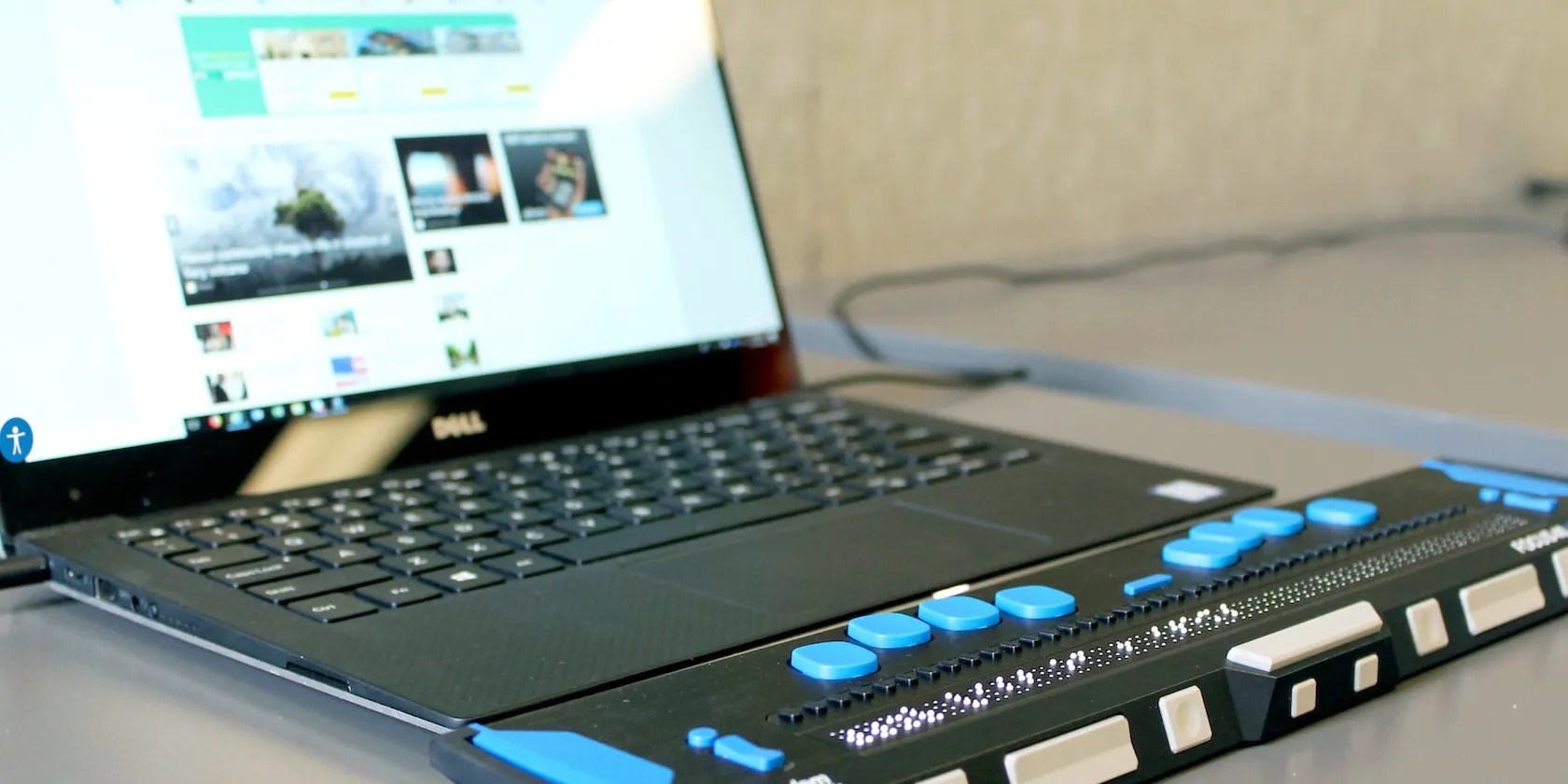
You can use Orca to navigate and interact with text, graphics, and other GUI elements on the screen. In addition, you can use it to read and compose emails and documents and perform different types of text-related tasks.
You can activate the Orca screen reader usingSuper + Alt + S, and use the same shortcut to disable it.

2. Magnifier
Another great accessibility feature on Ubuntu is the ability to zoom in on the screen for better readability. It works like a magnifying glass. This feature can be particularly useful for people who may have difficulty reading small text or graphics on the screen.
To enable the Zoom feature on Ubuntu, you can go to Settings by pressing theSuperorWindowsbutton, then selectAccessibility. Under Accessibility, click theZoombutton located in the Seeing section.

You’ll be presented with some configuration options for the zoom functionality. For example, you may select the level of magnification that you want and how the cursor should behave. Furthermore, you can also adjust the color effects.
Disable screen magnification by toggling off the Zoom feature in the Accessibility menu.

You can also consider installingAccessible-Coconut on your computer, which is a Linux distro that specially caters to those with visual impairments.
3. Increase Text Size
As a complement to the Zoom feature, you can configure your system to show larger text in all applications.
Enable this feature by going to Settings then selecting theAccessibilitytab and finally clicking theLarge Texttoggle button located in the Seeing section. Once enabled, your entire system will have enlarged text.
In most applications, you can also increase the text size by pressing theCtrland+buttons together orCtrland-to reduce the text size.
Click theLarge Texttoggle button again to disable the large text feature.
If the fonts on your computer are not ideal for your needs, you cancreate your own custom fonts using tools such as Glyphtraceron Linux.
4. Other Accessibility Features
Some other features that make your Ubuntu machine more usable if you have visual impairments include:
In addition, there are lots ofGNOME extensions to provide you with a more customized Linuxdesktop environment.
Ubuntu and Linux Are Both Very Accessible
Ubuntu is a great Linux distro and contains a wide range of accessibility features to cater to different people including those with visual impairments.
Compared to other mainstream operating systems, Linux tends to be more accessible for people with visual impairments and other accessibility challenges.
Linux ships with several apps specially developed for differently-abled people. But what makes it better than other OSes in terms of accessibility?
My foolproof plan is to use Windows 10 until 2030, with the latest security updates.
Now, I actually finish the books I start.
I plugged random USB devices into my phone and was pleasantly surprised by how many actually worked.
Freeing up vital memory on Windows only takes a moment, and your computer will feel much faster once you’re done.
I gripped my chair the entire time—and then kept thinking about it when the screen turned off.
