What Is Rosetta 2 and How Do You Install It on a Mac?
Apple leaving Intel and migrating to its own processors sparked the question: what will happen to Intel-based apps? Well, Rosetta 2 is Apple’s answer to the question.
Apple released macOS Big Sur in 2020 and integrated Rosetta 2 as a component. Rosetta 2 will help you run Intel-based applications seamlessly on Apple silicon.

If you’re wondering what it is and how exactly you can use it, we’ve helped give you better insight into this valuable piece of software.
What Is Rosetta 2?
Historically, the Rosetta Stone was an important artifact that historians used to decode ancient Egyptian hieroglyphs. Inspired by its ancient namesake, the Rosetta 2 software translates code for the newerApple silicon processorsto understand.
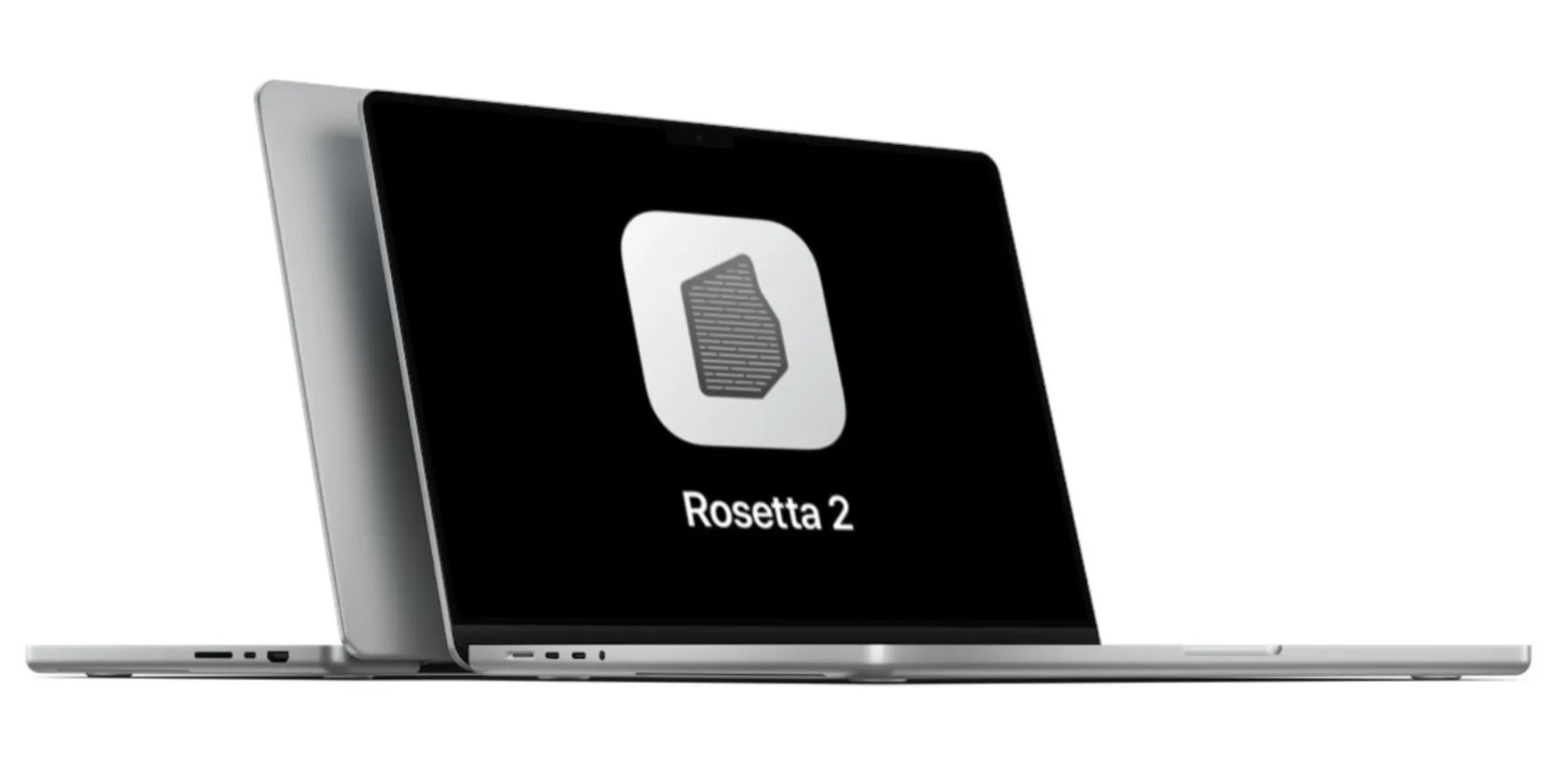
Essentially, Rosetta 2 is an emulator. It translates applications compiled exclusively for 64-bit Intel processors for execution on Apple silicon processors. You can find or install Rosetta 2 on macOS Big Sur and later. Without it, you won’t be able to run Intel-based applications on your M1 or M2-powered Mac.

Rosetta 2 doesn’t support 32-bit applications. They are completely dead, and it is unlikely any version of macOS will support it down the road.
As you may have guessed, Apple silicon doesn’t run on x86 architecture. Instead, it uses anARM CPU architecture. Rosetta 2 automatically takes the commands from an Intel application you open and changes them to something the Apple silicon processors can run.

A Brief History of Rosetta 2
However, this isn’t the first time Apple has used an emulator to make their change from one processor to another easier. In 2006, Apple switched from PowerPC to Intel when it announced Rosetta in Mac OS X Tiger, Rosetta 2’s predecessor.
Compared to its predecessor, Rosetta 2 is very effective and not limited by applications that have high computational needs. Apple advised that the original Rosetta should only be used on software like word processors, and we should avoid demanding applications like games and CAD.

But Rosetta 2 works so well that some say it’s better to run applications with it on Apple silicon than do it natively.
How to Install Rosetta 2 on Your Mac
If you’re struggling to find Rosetta 2 on your M1 or M2 Mac, you can easily do so by attempting to run any Intel application you have (like VLC). When a prompt asking you to install Rosetta 2 comes up, all you have to do is clickInstall.
Follow the instructions and enter your password or Touch ID. As soon as it’s done installing, you can now use it automatically. After you install it, you can’t manage it the same way you would manage other apps. It doesn’t have any application or any section in System Settings.
Alternatively, you can install Rosetta 2 throughthe Terminal app. You can use this method if you don’t want any unnecessary prompts:
Which Mac Apps Require Rosetta 2?
It might be a bit difficult to tell off the bat whether an app needs Rosetta 2 to run. If you run an app incompatible with Apple silicon and it crashes without booting up, then it needs to be booted with Rosetta 2.
Apps fall into two categories: Universal or Intel. Universal apps work on both Apple silicon and Intel, while Intel apps work only on Intel. You should use the Get Info tool if you want to find out which one falls under what category.
Some apps with the Universal tag (especially video games from Steam) may still need Rosetta to boot. So, run them through Rosetta if they crash. Also, some Universal apps may have extensions or plug-ins that are Intel-based. For these additions to work, you would need to run the app with Rosetta 2 even though you didn’t need to before.
Follow these steps to find out what type of app it is and run it through Rosetta 2 if applicable:
For Steam games, you should do this instead:
An Emulator to Smoothen the Transition
Major changes to CPU architecture can make work difficult for users and developers. But Apple’s Rosetta 2 translation process doesn’t just make the transition to Apple silicon tolerable; it makes it seamless.
As a whole, it is unobtrusive, efficient, and, most importantly, effective. Apple may have completely given up on Intel, but Rosetta 2 is here to stay so that we can continue running apps designed for Intel processors.
You might need to find out what kind of processor is in your Mac to install certain software—here’s where you need to look.
Quality apps that don’t cost anything.
You’ve been quoting these famous films wrong all along!
Turn these settings on, and your iPhone will be so much better than before.
Not all true crime is about hacking, slashing, and gore.
Anyone with more than a passing interest in motorsports must see these films.
